How to Install TakeVid in Chromium Browsers
You can install TakeVid manually from its Chromium ZIP package. This guide covers desktop browsers; it does not apply to Firefox, Safari or mobile browsers.
The screenshots use Brave. Button names and positions may differ in your browser. Click a screenshot to open the full-size image.
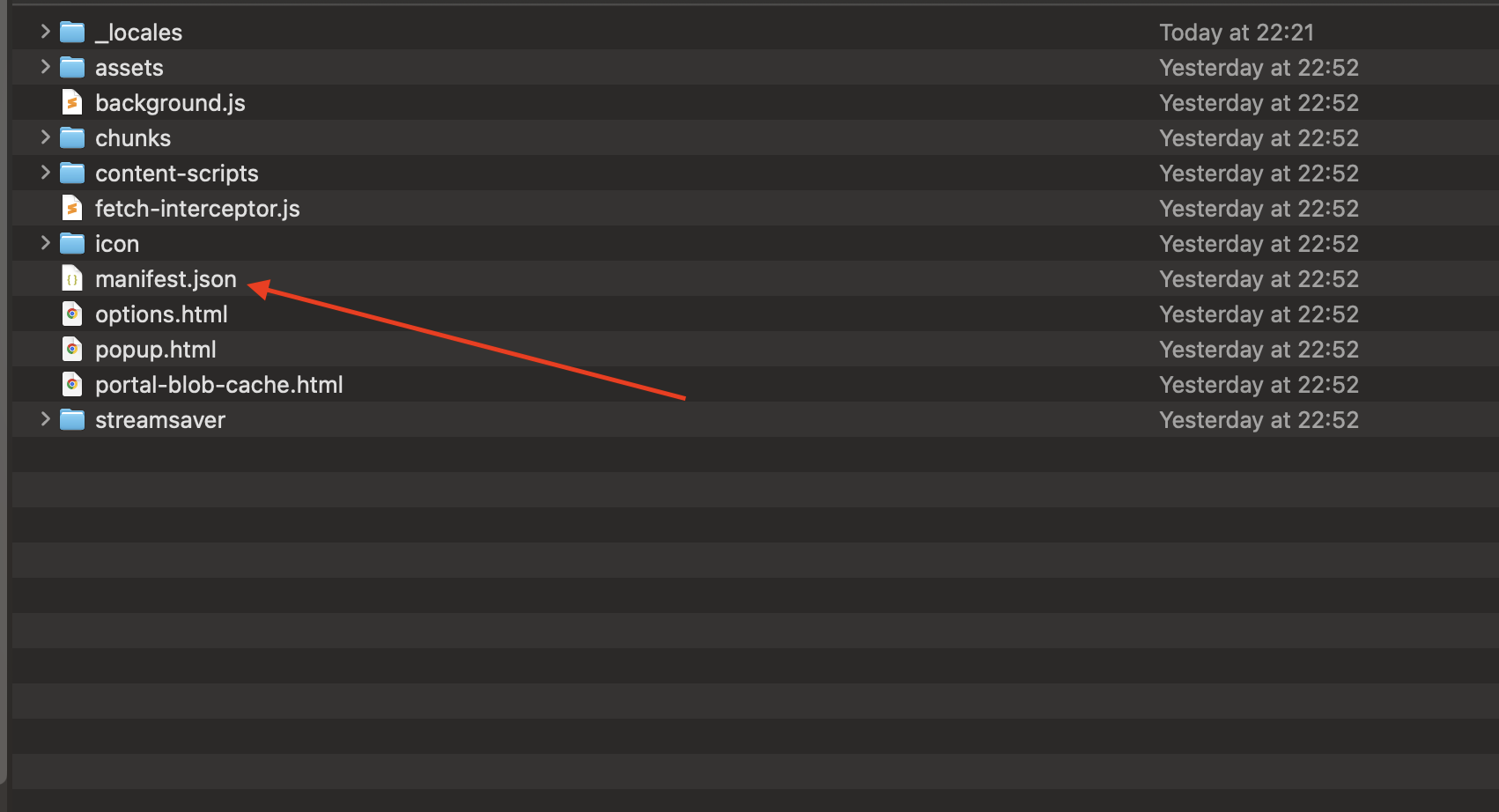
1. Download and extract the extension
Download the ZIP below and extract all its files into a permanent folder. Open that folder and check that manifest.json is directly inside it. Keep the folder after installation: the browser continues to use its files.
Download TakeVid for Chromium (.zip)
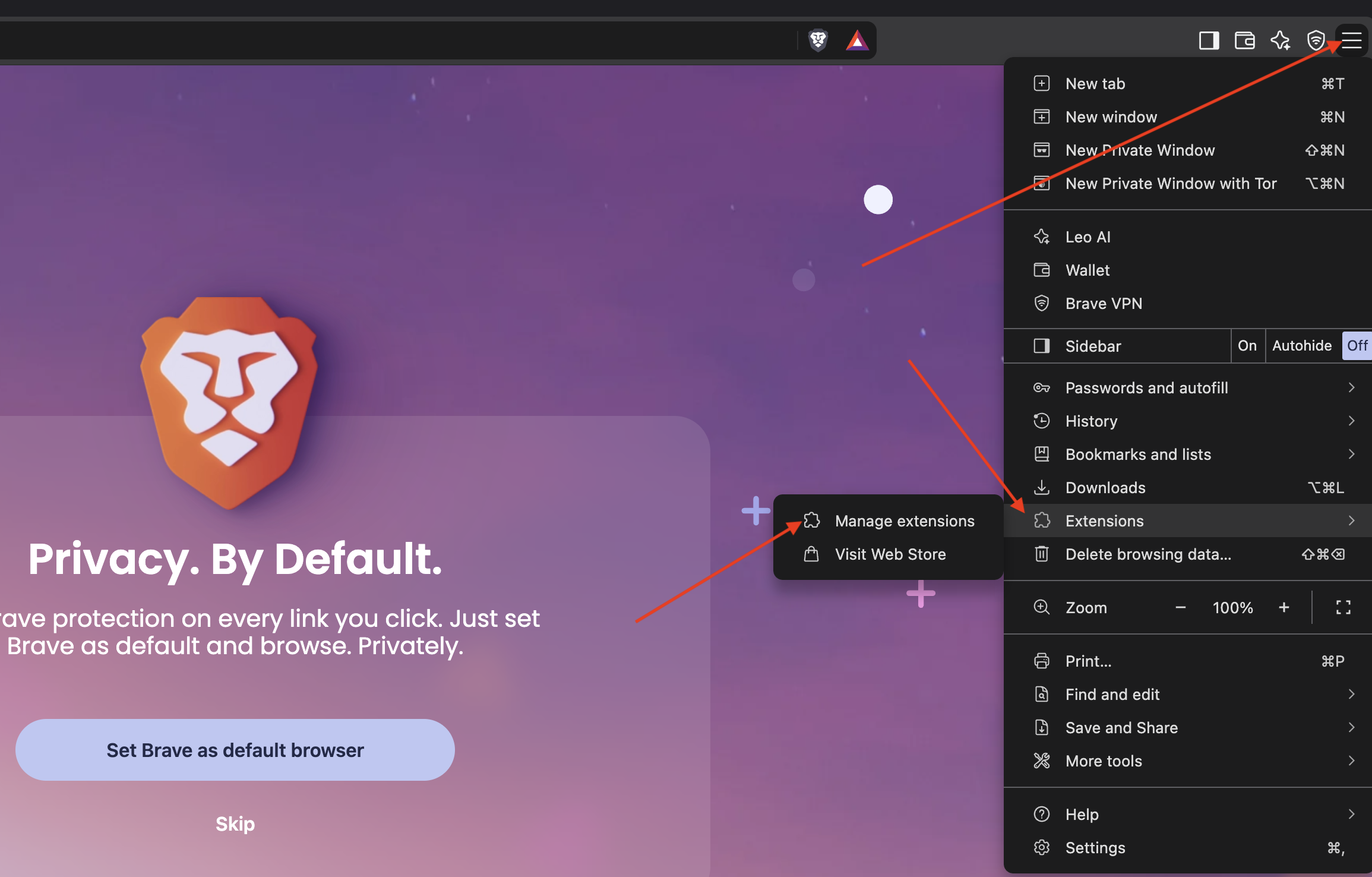
2. Open the extensions manager
Open the browser menu, then Extensions → Manage extensions. Alternatively, type the matching address below into the address bar and press Enter; these internal addresses cannot be opened as normal website links.
- Chrome: chrome://extensions
- Microsoft Edge: edge://extensions
- Brave: brave://extensions
- Vivaldi: vivaldi://extensions
- Opera: opera://extensions
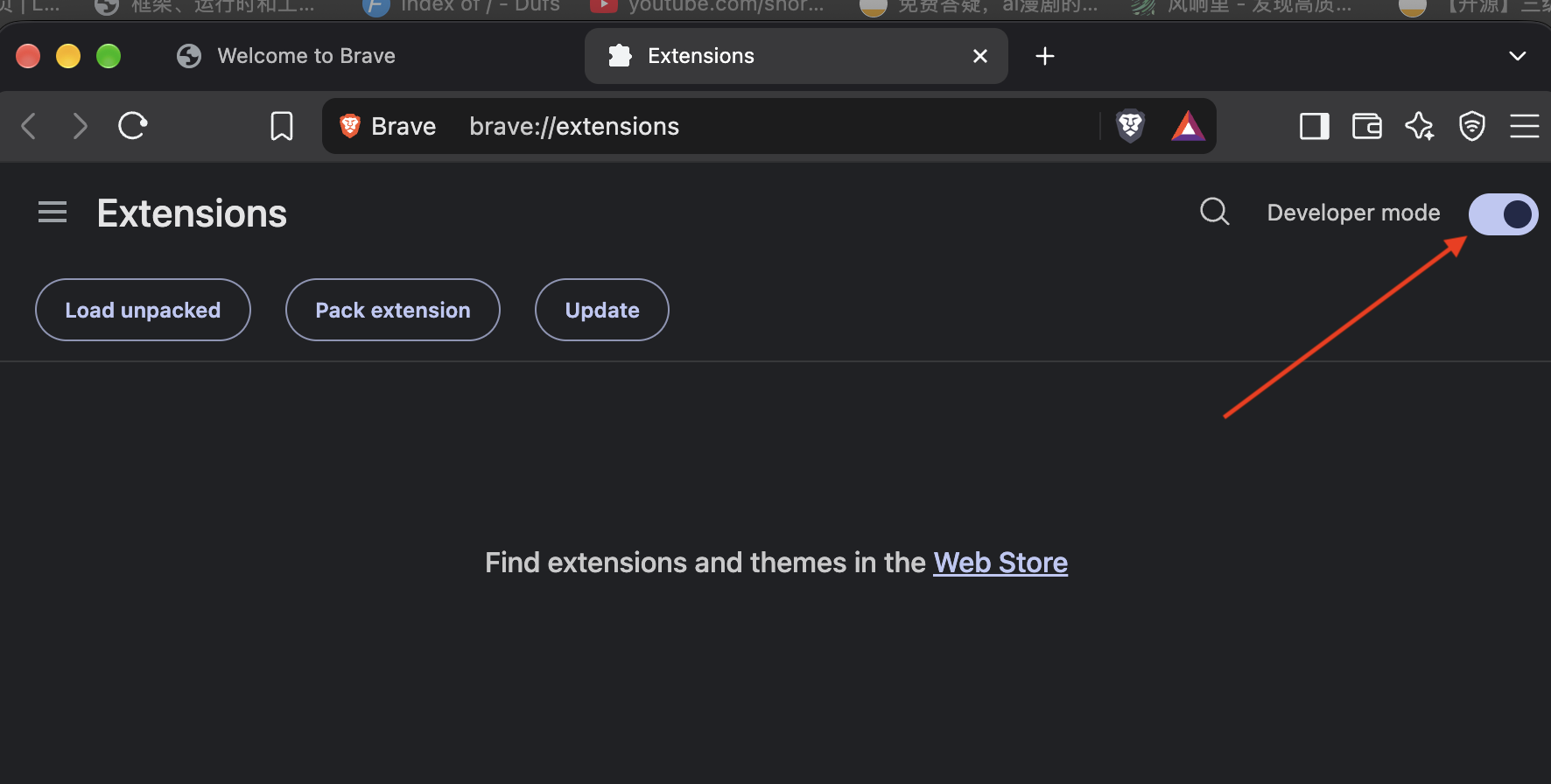
3. Enable Developer mode
On the extensions page, turn on Developer mode. Additional controls will appear, including Load unpacked. You do not need to use Pack extension.
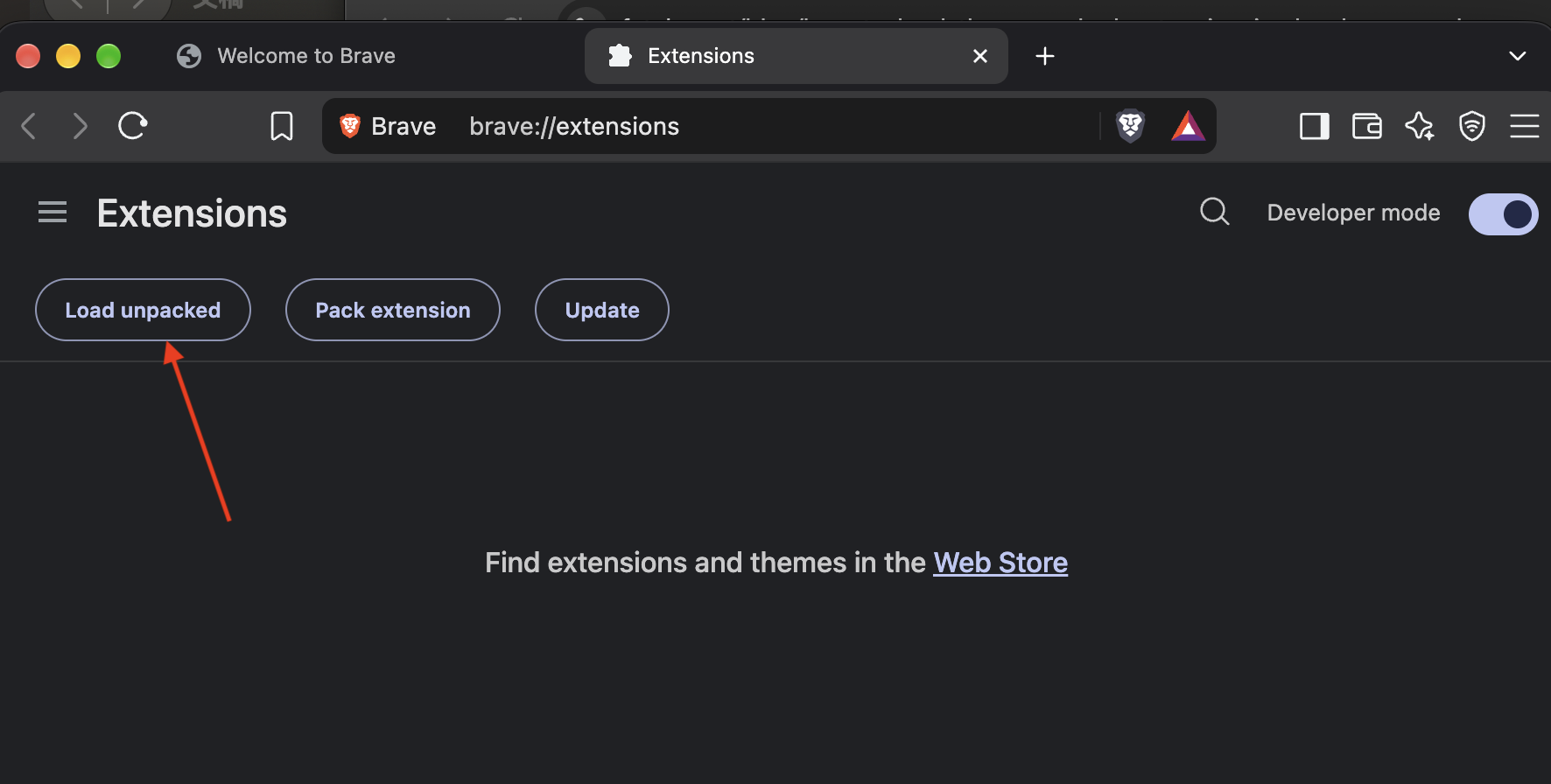
4. Load the extracted folder
Click Load unpacked and select the folder that directly contains manifest.json. Select the folder itself, not the JSON file or the ZIP. Confirm your selection; a TakeVid card should appear with its switch enabled.
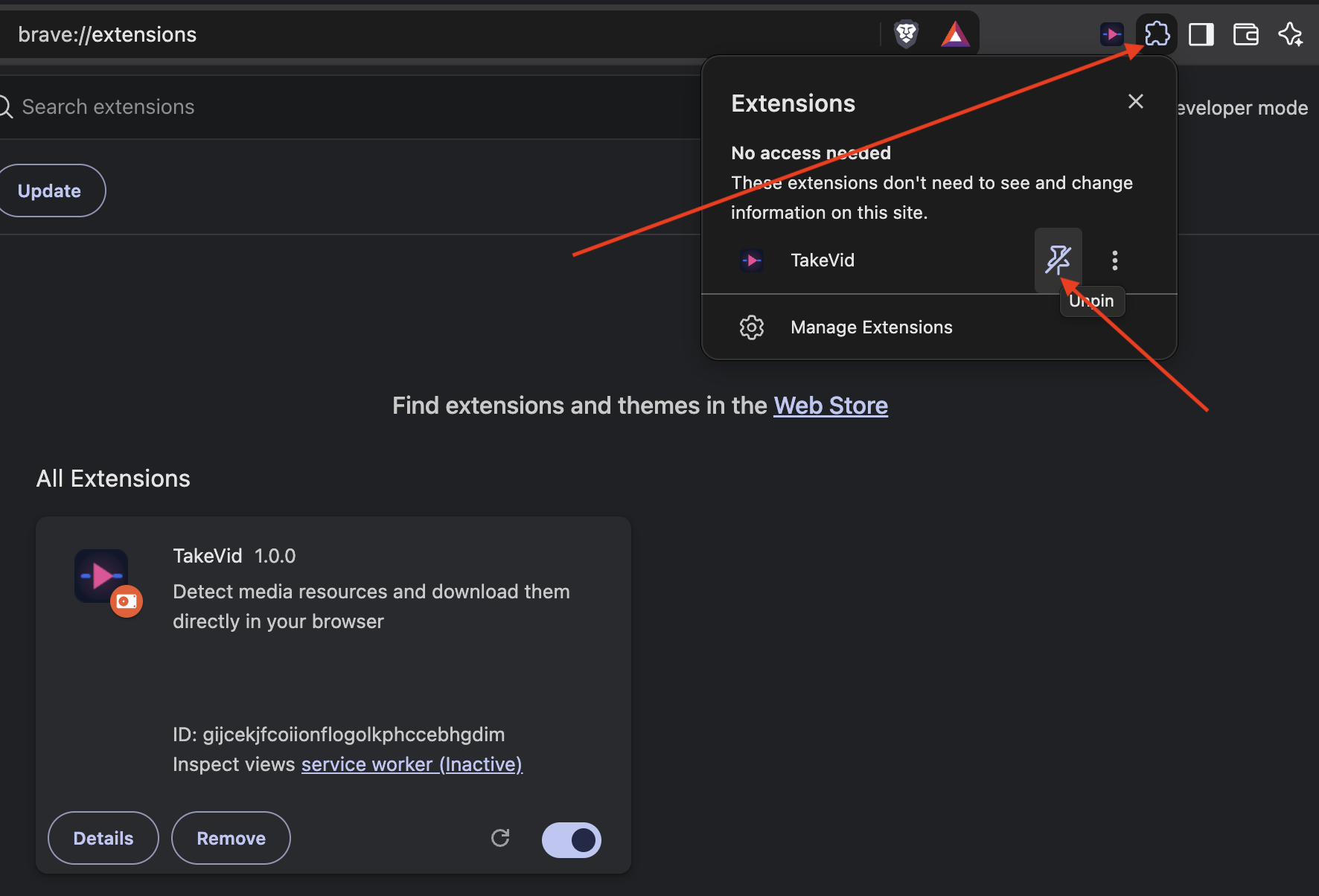
5. Pin TakeVid to the toolbar
Open the puzzle-piece Extensions menu, find TakeVid and click its pin button. The TakeVid icon should remain beside the address bar. In this screenshot it is already pinned, so the tooltip says Unpin; clicking it again would remove the pin.
6. Check that TakeVid is ready
Open or refresh a normal video webpage, play a video you are allowed to save, then click TakeVid. Choose a detected resource to open its download panel. Browser settings pages are not video pages; YouTube and DRM-protected content are not supported.
How to update a manually installed extension
ZIP installations do not receive store updates automatically. Download the newer package, replace the files in the same extension folder, then click Reload on the TakeVid card in the extensions manager. Refresh any video pages that were already open.
If installation does not work
- Missing or unreadable manifest: extract the ZIP completely and select the inner folder that directly contains manifest.json.
- Load unpacked is missing: check Developer mode. If your browser is managed by an organization and the option is blocked, contact your administrator.
- No toolbar icon: open the Extensions menu and pin TakeVid. If the icon is present but no media appears, refresh the video page and start playback.
Still need help? Open TakeVid feedback